
Automate screenshots in your docs
Fern can log into your product's dashboard and capture annotated screenshots for your documentation using the Dashboard integration.
She'll navigate your authenticated pages, takes screenshots, and adds visual annotations like arrows pointing to buttons or menu items.
How it works
Once connected, Fern can:
Log in automatically using your provided instructions
Navigate to specific pages or flows
Capture screenshots at key moments
Add visual annotations (arrows, highlights)
This integration is currently in beta.
You'll need a demo or test account for your dashboard with the appropriate access level. Make sure you know the exact login steps.
Setting up the Dashboard integration
Navigate to the Integrations page and locate the Dashboard integration card. Click the Connect button.
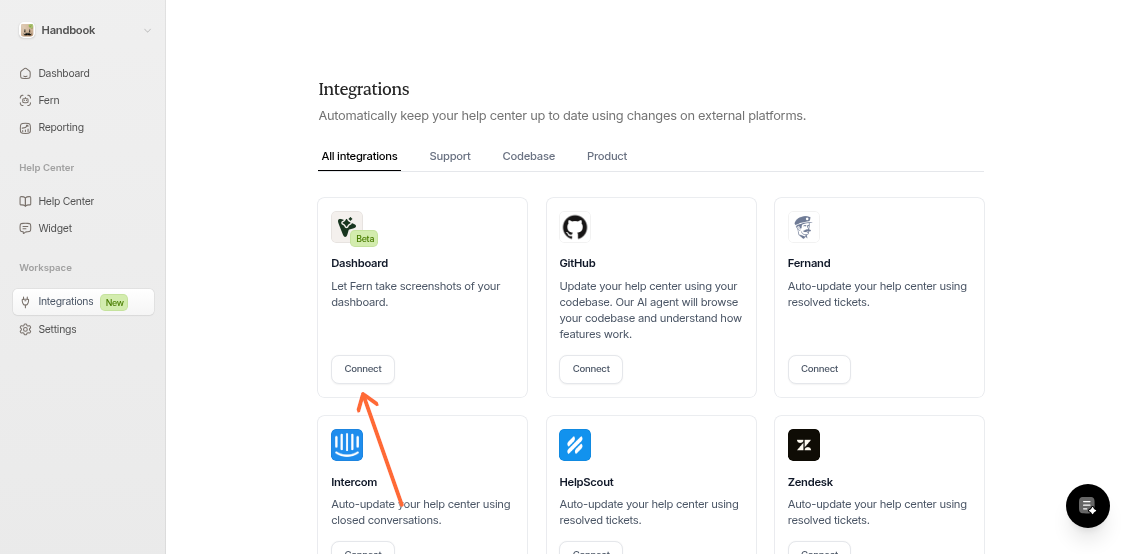
Provide three pieces of information:
Dashboard Name: A label to identify this dashboard (e.g., "Our Admin Portal")
Dashboard URL: The full URL where Fern should start (e.g., "https://app.yourproduct.com")
Login Instructions: Step-by-step instructions for logging in
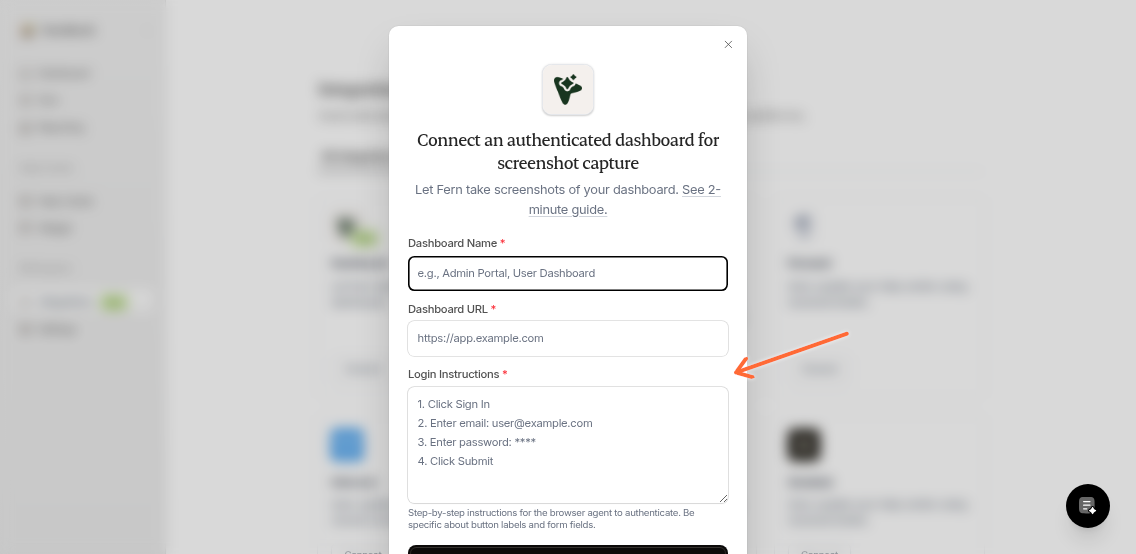
Writing login instructions
Be specific about button labels and form field names. For example:
1. Click the "Sign In" button in the header
2. Enter email in the "Email Address" field: [email protected]
3. Enter password in the "Password" field: your-demo-password
4. Click the "Continue" button
5. If prompted for 2FA, click "Use backup code"
6. Enter backup code: 123456789
The more specific you are, the more reliable the automation will be.
Login credentials are encrypted and stored securely. Use a dedicated demo or test account rather than a personal or production admin account.
Using the integration
Ask Fern to capture screenshots when creating or updating articles:
"Take screenshots of the user settings page in my Admin Portal"
"Document the API key creation flow with annotated screenshots"
"Update the onboarding article with fresh screenshots from staging"
Managing connections
Connect multiple dashboards (production, staging, different products) from the Integrations page. To edit or remove a connection, click "Manage connections" on the Dashboard card.