
Discord Integration
This guide will walk you through the process of connecting your Discord account to Ferndesk. This integration allows Fern to auto-update your help center using conversations in your server's forums.
Before you begin
You will need to have a Discord account and a server with forums enabled to complete this integration. If you don't have one, you can create one on the Discord website.
Connection Steps
Step 1: Navigate to Integrations
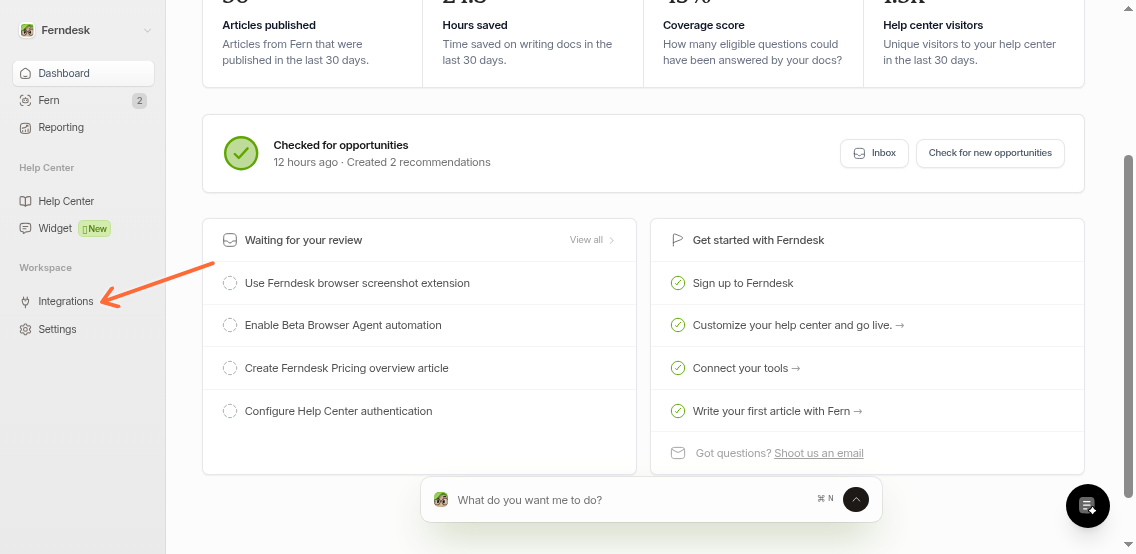
From your Ferndesk dashboard, click on Integrations in the left sidebar.
Step 2: Find Discord and Click Connect
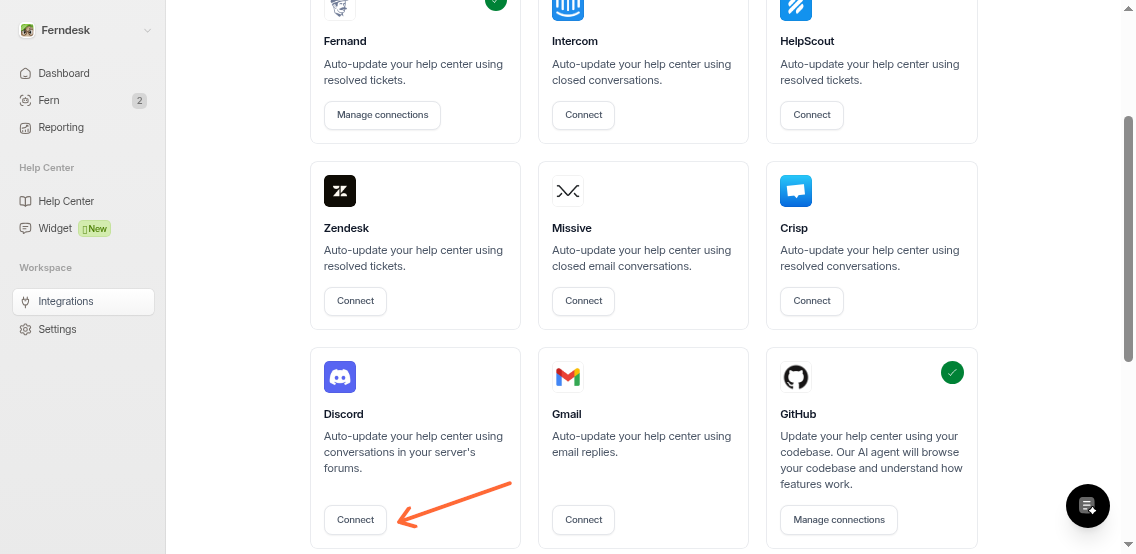
Locate the Discord integration card in the list (you can filter by "Support" category). Click the Connect button on the Discord card.
Step 3: Review Connection Details
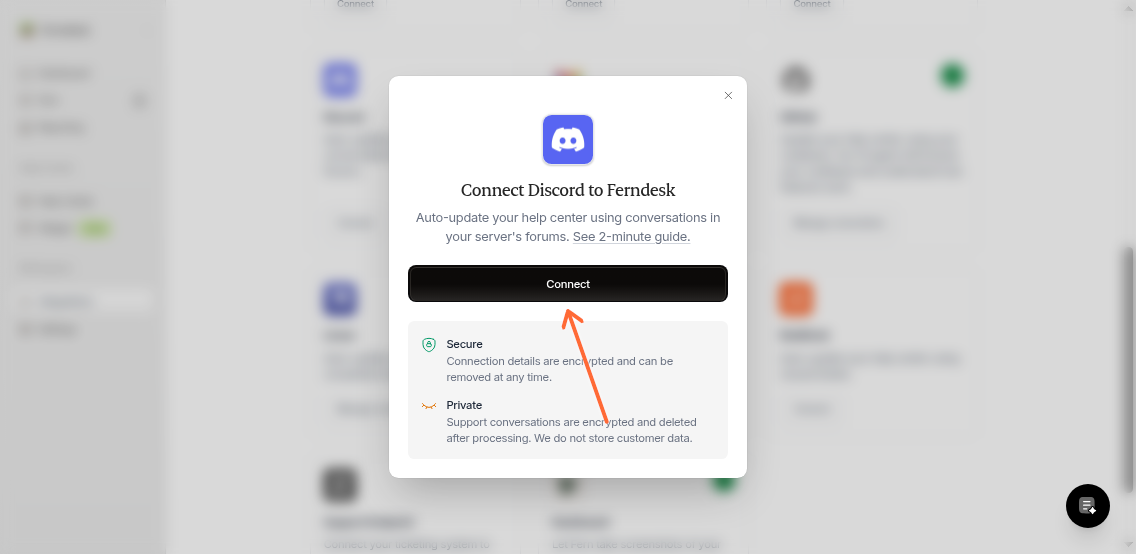
A dialog will appear showing the connection details. Review the security information, then click the Connect button in the modal.
Step 4: Authorize Discord
You will be redirected to Discord to authorize the connection. Log in to your Discord account if you are not already logged in, select the server you want to connect to Ferndesk, and grant the necessary permissions.
Ferndesk requests permissions to view channels, read message history, and access forum conversations. These permissions allow Fern to sync content from your Discord server's forums.
Step 5: Confirm Connection
Once you have authorized the connection, you will be redirected back to Ferndesk. The Discord card will now show a green checkmark indicating a successful connection.
Once connected, Fern will automatically sync conversations from your selected Discord server's forums to your help center.
Managing Connections
You can connect multiple Discord servers to Ferndesk. To view or manage your connections, click the Manage connections button on the Discord card.
From this dialog, you can add additional connections or remove existing ones.
Additional Resources
For more information on Discord's features, you can visit their Help Center.