
Using Fern to create and edit articles
Tasks are how you tell Fern what to create or update in your help center. Fern handles the research and writing, you provide the instructions and review the results.
Tasks are accessed from your Dashboard sidebar under "Fern" at app.ferndesk.com/fern
Creating a task
There are three ways to create tasks:
1. From the Fern dashboard
Navigate to Dashboard sidebar → Fern. You'll see the Fern prompt box at the top where you can type natural language instructions.
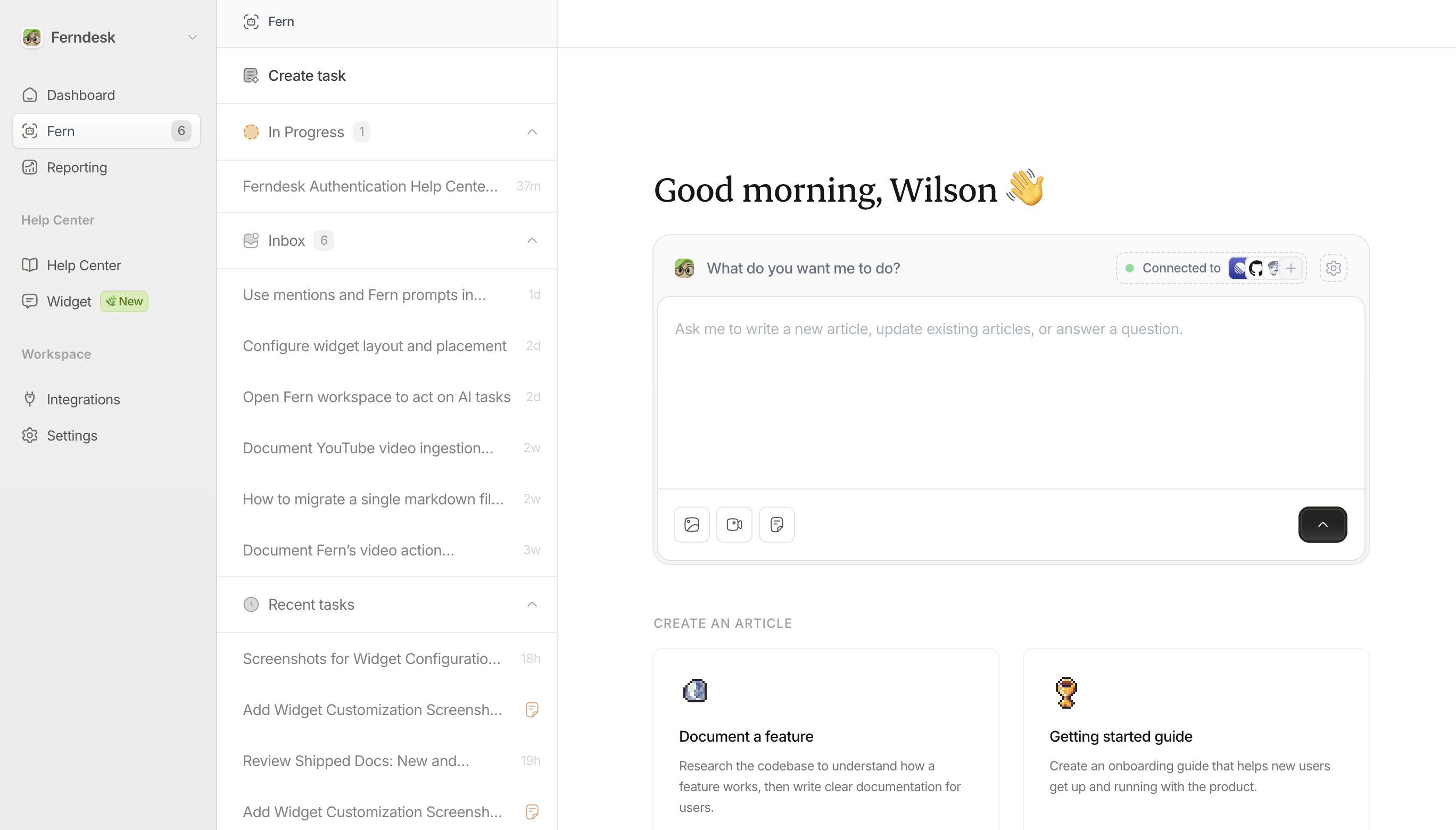
Freeform prompts: Type what you need in plain English. Be specific for best results:
"Write a getting started guide for new users"
"Update the API authentication article with the new OAuth flow"
"Create troubleshooting docs for login errors"
Quick templates: Click any template card below the prompt box to pre-fill common requests.
2. From Recommendations in your inbox
When Fern identifies content gaps or outdated articles through recommendations, you can click "Assign to Fern" to automatically generate a task with context already attached.
3. From Linear issues (if integrated)
If you've connected Linear, you can create documentation tasks directly from Linear issues. See How to use Fern in Linear issues.
Adding context to tasks
The more context you provide, the better Fern's output. You can attach:
Files:
Images: PNG, JPEG, GIF, WebP
Videos: MP4, WebM, QuickTime
Documents: PDF, TXT, DOC, XLS, CSV
Links: Paste external URLs or YouTube videos for Fern to reference.
References: Select existing articles, collections, or support threads to give Fern background information.
Drag and drop files, paste screenshots, or use the attachment buttons in the task creation dialog.
Be specific in your prompts. Instead of "write about webhooks," try "write a setup guide for webhooks with code examples showing the payload structure."
What tasks can do
Fern can handle multiple types of documentation work:
Create new articles from scratch based on your description
Update existing content to reflect product changes or fix errors
Research and write from support signals, recommendations, or audits
Edit for clarity by rewriting sections or improving structure
What tasks can't do
Create new collections: Change the structure of your help center
Answer questions about using Ferndesk: find answers in our help center instead.
Monitoring task progress
After you create a task, it appears in the task list on the sidebar.
Tasks with unpublished drafts have an article icon so you know what's pending review.
The list auto-refreshes as tasks progress. You'll also receive an email notification when a task is ready for review, and push notifications if enabled.
Reviewing and publishing
When Fern finishes drafting an article, it will appear at the bottom of your task.
If the output looks good: Click "Publish article(s)" to make it live in your help center immediately.
If it needs changes: You can message Fern with additional instructions (e.g., "add more code examples" or "make the tone less technical"), or close the task and create a new one with refined instructions.
If you don't want it: Close or discard the task. Nothing is published until you explicitly approve it.
Tasks that get stuck or stall can usually be resumed by sending Fern a message in the task thread asking it to continue.
Tips for better results
@mention articles or collections: to tell Fern to focus on them.
Provide examples: If you want a specific format or style, include an example or reference a similar article.
Attach supporting materials: Screenshots, spec docs, API response examples: anything that helps Fern understand the feature.
Link related content: Reference existing articles so Fern maintains consistency with your current documentation.
Be direct about tone and audience: Specify if you're writing for developers, end users, admins, etc.
Common issues
Task appears stuck: Message Fern in the task thread to resume progress.
Unsupported file types: Convert files to supported formats (PDF for documents, PNG, JPEG or WEBP for images) before attaching.
Output doesn't match expectations: Try again with a more detailed prompt, additional context, or reference examples of what you want.