
Intercom
Once you’ve integrated your RightMessage account with Intercom, you’ll be able to use us to segment known contacts, personalize your website with Intercom data, and send segment data back to Intercom.
If you’re new to how RightMessage integrations behave, read How integrations work first. For field mapping and ongoing sync behavior, see Synchronizing contact data with your email platform or CRM.
Linking RightMessage with Intercom
To create a link between RightMessage and Intercom, add an Access Token and choose the right Region in RightMessage.
Step 1: Create an Intercom access token
In Intercom, open the Developer Hub for your workspace and create or open a private app that can call the Intercom API.
Intercom will show you an Access Token. Copy it now. You’ll paste it into RightMessage in the next step.
Choose the right region. RightMessage supports US (default), EU, and AU. This needs to match your Intercom workspace region or the connection won’t work.
Step 2: Paste your token into RightMessage
In RightMessage, click Integrations in the left sidebar, then choose Intercom.
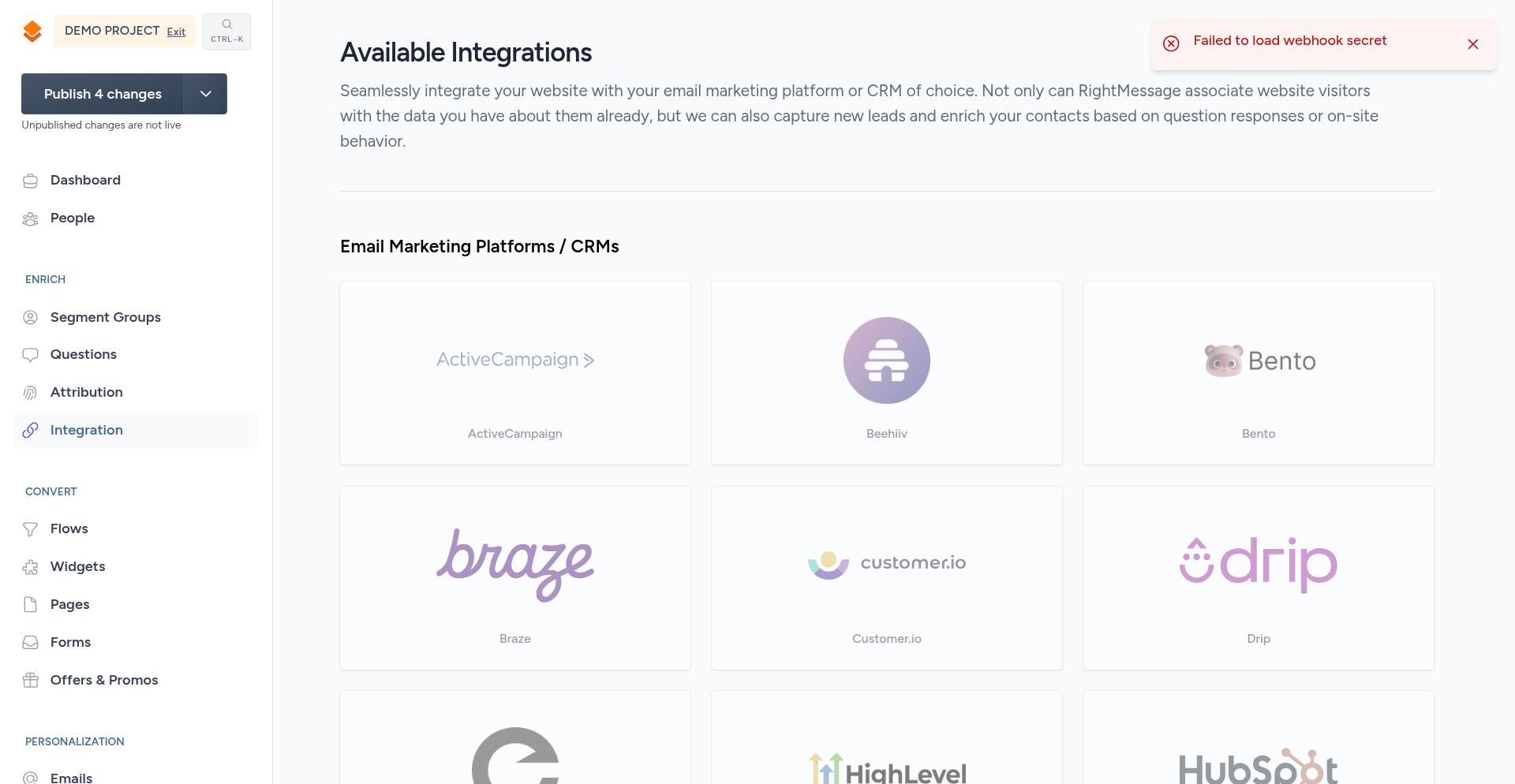
Paste your Access Token into the field, choose your Region, then connect the integration.
That’s it. Once connected, RightMessage can read and update Intercom contact data for identified visitors.
Identifying Intercom contacts on your website
RightMessage can only personalize for people we can identify. If someone is still anonymous, we’ll wait until they become a known contact before we sync data to Intercom.
The easiest way to understand this is to read our guide on how integrations work. The short version is this: once we know who someone is, we can look up their Intercom contact record and use that data for segmentation and personalization.
What RightMessage needs to identify a contact: Intercom lookups rely on a known email address or contact ID. If neither is available yet, RightMessage can’t load that person’s Intercom data.
The Intercom data we can use to segment website visitors
When an identified visitor returns to your website, RightMessage can use Intercom data to decide what they should see.
This includes:
Tags on the Intercom contact
Data attributes and other custom contact fields
That data can power audience rules, personalize page content, or drive branching inside your Flows.
Sending segment data back to Intercom
RightMessage can also push segment answers and behavior data back to Intercom. This is what lets you keep your website segmentation and your Intercom contact records in sync.
To do that, map a RightMessage segment group or question to the right Intercom field. Our guide on synchronizing contact data with your email platform or CRM walks through that setup.
If the field doesn’t exist yet in Intercom, create it there first, then reload RightMessage before mapping it.
Outputting Intercom fields on your website
You can also use known Intercom data inside website personalizations.
For example, if you store a custom Intercom field for a visitor’s favorite color, you can reference it with a merge tag using the Intercom provider in your personalization setup. Use the same field names you’ve made available through the integration.
If you need help with merge tags and contextual data, start with the relevant personalization guide, then test with a known contact before publishing.
What to do next
Once the integration is connected, map the segment fields you want to sync, then publish your changes so they go live.
After that, test with a known Intercom contact and confirm that RightMessage can both read their Intercom data and write new segment values back to their record.